
Archiv der Kategorie: Selenium/WebDriver

XPath Extensions for Chrome

For me the benchmark for XPath tools is the FirePath for Firefox, which fits IMHO perfectly the needs of testautomation.

Criteria for a good xpath tool

1.) Showing the DOM (for good orientation)
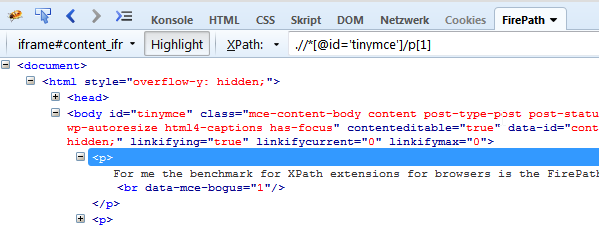
DOM in firepath
2.) Highlighting: The tool should highlight the element on the website, when hovering over the element in the DOM
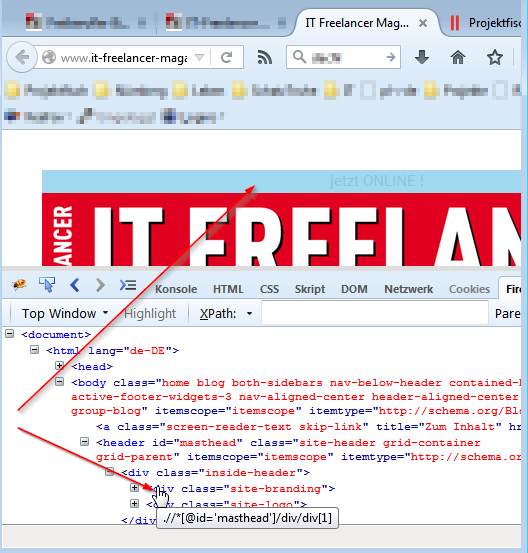
criteria xpath checker
3.) Syntax-Checker: Alert when xPath is invalid (in contrast to not finding an element)
Compare:
syntax_ok
To:
syntax_bad
4.) of course the basic stuff: usability, reliability (…)
5.) Not only display node-types, but also number-types:
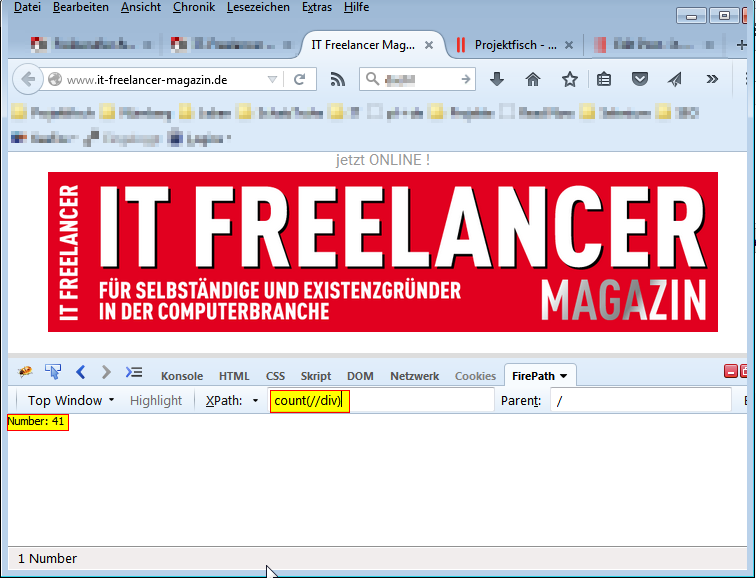
criteria xpath checker2
6.) Suggesting a proper xpath for an element (ideally it’s good enough to use it without modification):
suggestion xpath

Analysis of XPath Tools in Chrome

Now I’m looking for an equivalent for Chrome browser and found 3 xpath extensions in the Chrome Webstore:

1.Tool) XPath Helper

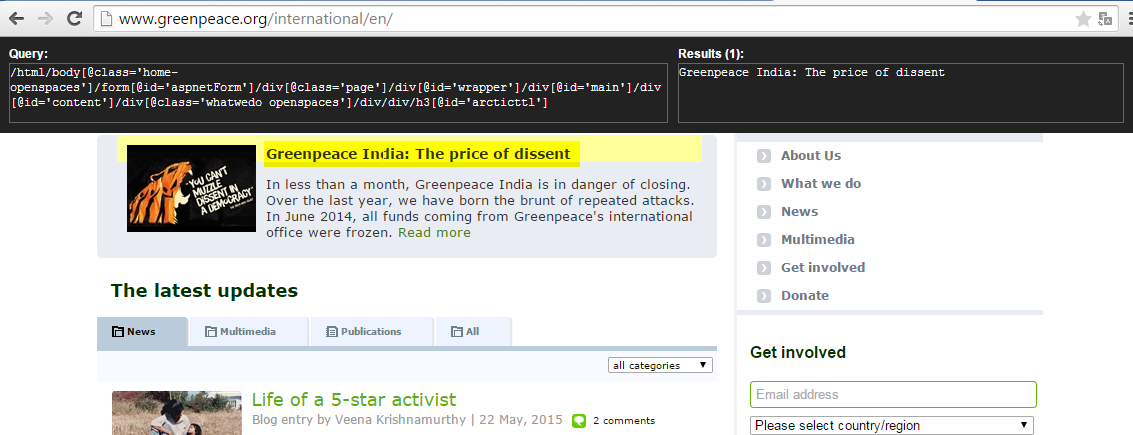
The XPath Helper is the most distributed extension with 250 feedbacks, so I installed this tool first. After you press ctrl+shift+x, the tool appears on the TOP of the viewport, which is unusual for me, but ok. Very nice is the handling, to get the xPath for an element: you just have to press shift, while hovering over the element. Also an invalid xPath is alerted well. But the suggested xpath is much too long, so must be modified by hand in every single case. Additionally I’m heavily missing the virtualisation of the DOM, like in FirePath.
While playing around, I quickly found a severe bug: This xPath „//*[@class=’gsfi‘]“ shows a match for this element: class=“gsfi xh-highlight“. Evil.
Summarized the XPath helper is no alternative to FirePath in Firefox.xpathHelper
2. Tool) XPath

The second choice with 96 feedbacks is „XPath“, which comes with the unattractive total rating of 2 of 5 stars, but let’s see. After installing it, it opens two tabs just for advertisement, which is not really sympatic, but let’s see. As claimed I clicked on the toolbar icon and then clicked an element. I did it very often, but nothing happens. To check if I’m too dumb to use it correctly, I read the ratings in the Chrome Webstore: many users facing the same simple problem: this tool just doesn’t work.

3. Tool) xPath Analyzer

The third choice with tiny 10 feedbacks is xPath Analyzer, but let’s give underdogs a chance. After installing I found, this tool also comes with an icon in the toolbar. Trying to use it on www.google.com I got an error: „This page does not contain an XML document.“ Not wasting much of my time, I estimate: this tool has no use for testautomation.

4. Tool) Build-in XPath Tool

Last chance to find an alternative to firebug in Chrome is asking stackoverflow: In this answer it’s indicated, that for Chrome the best choice is to use the build-in Chrome Developer Tools to cope with xPaths.
I found, the suggested xPaths are good. Anyhow, to get the xpath from an element is pretty inconvenient:

  1. First you have to „inspect the element“ via context menu.
  2. Then you have to „Copy XPath“
  3. Open the searching panel (Ctrl+F)
  4. and finally paste it manually in the DOM searching panel:

built-in
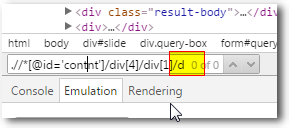
Unfortunately Developer Tools don’t tell me, if my xpath is invalid or just no element was found. This slows down the debugging. Another drawback in terms of usability is, that while writing the xPath, the focus in DOM may jump away. Also there’s a big minus in terms of usability, because for long XPaths, the textfield is to short:
criteria xpath checker3

5. Tool) XPath Viewer

This tool was updated in 2011 and since then it stays on version 0.2. I doubt, that this tool is developed further anymore. While testing I found a big bug: I could only find the element with XPath, when the element was in the viewport.

6. Tool) CSS and XPath checker

xpath-checker-chrome
This tool doesn’t show the DOM and has no syntax-checker. Also there was no update since 3 years. I have no hope, that it’s still actively developed.
Conclusion
There’s no such thing like FireBug in Chrome ecosystem. However if you must use a xpath tool in Chrome use the build-in Chrome Developer Tools.

If you want to develop a proper XPath Tool for Chrome, please join in an existing project and don’t create your own. Don’t waist your valuable programming ressources.
Quick Start of running Selenium WebDriver against PhantomJS in Java on Windows (Plain Java)

This is the quickstart without Maven, without IDE – just plain Java. For the quickstart with Maven look here
The browser with the probably highest speed and lowest memory consumption in Selenium world: the headless PhantomJS
[25.Feb.2014]: Ghostdriver is not ripe yet due to lack of enough stable maintainers: https://github.com/detro/ghostdriver/issues/140
[Note]: The development of Selenium and GhostDriver (which is the bridge between PhantomJS and Selenium) isn’t synchronized yet. So maybe the most actual versions of Selenium Server and GhostDriver may not work together. An (older) combination that fits:
* PhantomJS 1.9.2
* GhostDriver 1.0.4
* Selenium 2.34
1.) If you haven’t done yet, download the Java JDK from the download page (take the most actual Java Platform (JDK)). Execute it and follow the wizard. After that, set PATH.
2.) Download Selenium-Server-Standalone(!) 2.34.0 from
http://code.google.com/p/selenium/downloads/list?can=1&q=
On my notebook I have put it in C:\Users\IT Kosmopolit
3.) Download phantomjs-1.9.2-windows.zip here and extract it to C:\Program Files (x86)
4.) Add C:\Program Files (x86)\phantomjs-1.9.2-windows to the PATH-variable
5.) Download phantomjsdriver 1.0.4 from
http://mvnrepository.com/artifact/com.github.detro.ghostdriver/phantomjsdriver/1.0.4
On my notebook I have put it in C:\Users\IT Kosmopolit
6.) Save the following codesnippet as Example.java. On my notebook I have put it in C:\Users\IT Kosmopolit
Sample Code

import org.openqa.selenium.By;
import org.openqa.selenium.WebDriver;
import org.openqa.selenium.WebElement;
import org.openqa.selenium.phantomjs.PhantomJSDriver;
public class Example {
public static void main(String[] args) {
WebDriver driver = new PhantomJSDriver();
driver.get("http://www.google.com");
WebElement element = driver.findElement(By.name("q"));
element.sendKeys("Cheese!");
element.submit();
System.out.println("Page title is: " + driver.getTitle());
driver.quit();
}
}

7.) Open the Command Prompt and compile with javac:

javac -classpath "C:\Users\IT Kosmopolit\selenium-server-standalone-2.34.0.jar;C:\Users\IT Kosmopolit\phantomjsdriver-1.0.4.jar" Example.java

8.) Execute in the Command Prompt

java -classpath .;"C:\Users\IT Kosmopolit\selenium-server-standalone-2.34.0.jar;C:\Users\IT Kosmopolit\phantomjsdriver-1.0.4.jar" Example

9.) If you get a result like this, you’re done
success

Quick Start of running Selenium WebDriver against PhantomJS in Java on Windows (with Maven)

This is the quickstart with Maven. For a quickstart without Maven, look here
The browser with the probably highest speed and lowest memory consumption in Selenium world: the headless PhantomJS
[Update 26.11.2013]: Ghostdriver is not ripe yet due to lack of enough stable maintainers: https://github.com/detro/ghostdriver/issues/140
[Note]: The development of Selenium and GhostDriver (which is the bridge between PhantomJS and Selenium) isn’t synchronized yet. So maybe the most actual versions of Selenium Server and GhostDriver may not work together. A combination that fits:
* PhantomJS 1.9.2
* GhostDriver 1.0.4
* Selenium 2.34
Setup is really quick
1.) Download phantomjs-1.9.2-windows.zip here and extract it to C:\Program Files (x86)
2.) Add C:\Program Files (x86)\phantomjs-1.9.2-windows to the PATH-variable
3.) Add in pom.xml

        <dependency>
            <groupId>com.github.detro.ghostdriver</groupId>
            <artifactId>phantomjsdriver</artifactId>
            <version>1.0.4</version>
        </dependency>

4.) Maybe change the version of selenium in pom.xml

        <dependency>
            <groupId>org.seleniumhq.selenium</groupId>
            <artifactId>selenium-server</artifactId>
            <version>2.34.0</version>
        </dependency>

Sample Code

import org.openqa.selenium.By;
import org.openqa.selenium.WebDriver;
import org.openqa.selenium.WebElement;
import org.openqa.selenium.phantomjs.PhantomJSDriver;
public class Example {
    public static void main(String[] args) {
        WebDriver driver = new PhantomJSDriver();
        driver.get("http://www.google.com");
        WebElement element = driver.findElement(By.name("q"));
        element.sendKeys("Cheese!");
        element.submit();
        System.out.println("Page title is: " + driver.getTitle());
        driver.quit();
    }
}

Looks so good
… if you’ve done right – your result should look like that:
GhostDriver_Selenium_PhantomJS
Speedy Testing!